
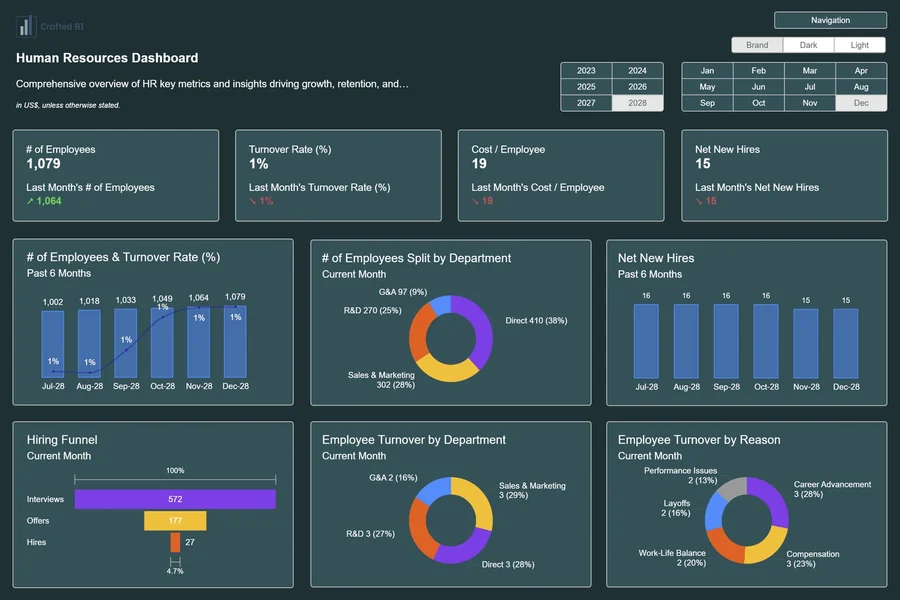
Power BI dashboards stand out. Real-life examples will help illustrate these concepts. Ready to make your data speak clearly? Let’s delve in!
Your visualizations could reach new heights with Zebra BI charts. These powerful options might change how you present your data.
Most of us have faced this challenge – staring at spreadsheets full of numbers and trying to understand their business impact.
Power BI charts change this story completely. Complex data sets become clear, visually appealing dashboards that anyone can understand, not just data analysts.
Choose the Right Power BI Charts for the Job
Picking the right chart type works just like selecting a tool from your toolbox – you need to match the visual with the story your data needs to tell. Let’s explore which Power BI charts work best for specific analytical tasks.
Bar And Column Charts For Comparisons
The reliable bar chart might seem like a simple tool, yet it stands as one of the most effective visualizations in the Power BI arsenal. Bar charts (horizontal) and column charts (vertical) shine at comparing values across categories.
Column charts work great for time-based comparisons with fewer data points. These charts show values vertically, making them a perfect fit for monthly sales figures or quarterly revenue trends. Bar charts prove more useful when you work with long category names.
Here’s a useful tip: bar charts work better than column charts when:
- Your labels have long text that would look cut off in columns
- You need to display many data categories
- You have limited horizontal space but enough vertical room
These variants can help you dig deeper:
- Clustered charts display side-by-side comparisons
- Stacked charts highlight total values while showing component parts
- 100% stacked charts showcase proportional contributions
Line Charts For Trends
Line charts excel at showing how data changes over time. These visuals highlight the overall shape of your data’s story in ways bar charts just can’t match.
Line charts deliver the best results with continuous data along the X-axis. You can spot seasonal patterns, find outliers, and see growth trajectories easily. Adding trend lines makes these patterns even clearer.
Your trend analysis becomes more powerful when you add:
- A 7-day rolling average to analyze short-term changes
- A 28-day rolling average to see longer-term patterns
It’s worth mentioning that trend lines only work with a single Y-axis and a continuous date X-axis. You might need separate visuals or creative solutions to compare multiple metrics over time.
Cards and KPIs For Quick Insights
The most powerful visuals can be the simplest ones. Card visuals showcase a single fact or data point clearly. These work great for highlighting key metrics like total revenue, customer count, or market share percentage.
Key Performance Indicators (KPIs) take this idea further by showing progress toward measurable goals.
A KPI visual needs three elements:
- A base measure (current value)
- A target measure or value
- A threshold or goal
KPIs answer vital questions like “How far ahead or behind am I?”. You can format them with conditional icons – green checkmarks for rising values and red exclamation points for falling ones.
The best dashboards usually have no more than 3-4 KPI visuals at the top of a report. Too many highlights reduce their effect and overwhelm viewers.
Maps And Scatterplots For Deeper Analysis
Map visuals turn abstract numbers into easy-to-grasp spatial representations when your data includes location information. Power BI gives you several map types to show location-based patterns in sales, customer distribution, or resource allocation.
Scatter charts help you see relationships between two numerical variables. They place data points where X and Y axes meet, which helps identify patterns, correlations, and outliers.
Bubble charts make scatter plots better by adding a third dimension through bubble size.
These charts work great for analyzing:
- Revenue (X-axis) vs. profit (Y-axis) with bubble size showing market share
- Age (X-axis) vs. income (Y-axis) with bubble size showing spending habits
Power BI limits scatter plots to 3,500 data points by default for better performance, though this can go up to 10,000. This keeps your visualizations running smoothly even with large datasets.
Want to explore more advanced visualization options? Zebra BI charts offer specialized visuals that can take your dashboard further with financial and variance charts.
Incorporate Interactivity and Accessibility
Interactive dashboards revolutionize data presentation. Static visuals tell only half the story. Active participants emerge from passive observers when interactive elements bring your data story to life.
Drill-Throughs And Slicers
Drill-through capability works like an elevator between floors in your data skyscraper. Users can right-click any visual or data point to access detailed information about their selection instantly. The power of drill-through becomes clear when you click “Northeast Region” and see a dedicated page with all metrics for that specific region.
Setting up drill-throughs requires a dedicated detail page. Add your desired filter fields to the “Drillthrough filters” section in the Visualizations pane. A back button appears automatically so users can return to their original view.
Slicers serve as visual filters placed directly on your report canvas. These visible filters make data exploration natural, unlike hidden filters in side panels.
Several formats are available:
- Dropdown menus (space-saving)
- Checkbox lists (multiple selections)
- Button/tile layouts (touch-friendly)
- Timeline sliders (date ranges)
Large datasets benefit from the search feature within slicers, helping users find specific values quickly. Complex reports work better with an “Apply” button on each slicer. This prevents unnecessary query processing until users finalize their selections.
Responsive Design For All Devices
Your dashboard might look perfect on a monitor but break completely on a phone screen. Power BI solves this through responsive visualization that adjusts dynamically to show maximum data on any screen size.
Responsive visuals need the “Responsive” toggle enabled under the Format pane’s General section. Data views remain prioritized as the visual size changes, with automatic adjustments to padding, legend placement, and element arrangement.
Power BI’s dedicated mobile layout editor creates phone-specific layouts. This tool allows custom visual positioning for mobile viewing without affecting the desktop design.
Accessibility Features In Power BI
Everyone should be able to use dashboards effectively. Power BI adheres to Web Content Accessibility Guidelines (WCAG) standards, making reports accessible to users with diverse abilities.
Power BI’s built-in accessibility features work right out of the box:
- Keyboard navigation for all visuals
- Screen reader compatibility
- High contrast color support
- Focus mode for enlarged viewing
- Data table view (Alt+Shift+F11)
Report creators should configure these additional accessibility elements:
- Descriptive alt text for all visuals
- Logical tab order that matches reading patterns
- Sufficient text-background contrast (minimum 4.5:1 ratio)
- Clear titles and labels on all elements
These practices enhance usability for everyone. Logical navigation and clear labeling help all users, especially those viewing reports on mobile devices or in distracting environments.
Zebra BI charts offer specialized visuals that enhance analytical depth without sacrificing interactivity or accessibility. By combining advanced formatting with intuitive design, they help transform complex datasets into clear, user-friendly dashboards that are easier to explore and understand.
Learn from Real Power BI Dashboard Examples
Examples work better than theory to light up the path ahead. Let’s get into three Power BI dashboards that put our previous discussions into practice.
Sales Dashboard For Regional Performance
VanArsdel’s Sales dashboard shows an excellent way to track market performance in regions of all sizes. The dashboard’s left column displays vital KPIs with yearly sales volume (50,000), market share (32.86%), and sentiment score (68). This dashboard stands out because of its logical progression from high-level metrics to detailed regional analysis.
The “Regional Sales” sample dashboard’s “Key Influencers” page reveals success factors. Product category filters like “Devices” show how specific items affect success rates. To name just one example, a particular e-reader model boosts “Won” status probability by 2.10 times.
Marketing Dashboard For Campaign Tracking
Marketing campaigns create vast amounts of data. A well-laid-out Power BI marketing dashboard connects the full marketing funnel from impressions to revenue and spots performance issues across channels.
Top campaign dashboards have:
- Campaign performance KPIs with clear visual hierarchy
- Complete funnel views that connect ad spend to revenue
- 13-month rolling trends that separate seasonal patterns from core changes
These dashboards spot underperforming ads quickly, balance ad spend by comparing cost-per-click on different platforms, and enhance device targeting based on results.
Customer churn dashboard with key influencers
AI analysis shines brightest in customer churn dashboards. The key influencers visual ranks customer departure factors and shows why customers choose to leave.
One analysis showed that “consumer” users (versus administrators or publishers) were 2.57 times more likely to give negative scores. The dashboard segments customers visually, with bubble height showing the proportion of low ratings.
Advanced churn dashboards group customers into lost, new, and returning categories. This helps businesses understand customer departure patterns and retention strategies. Zebra BI charts offer even more sophisticated visualization options for these dashboards.
Conclusion
Data visualization turns complex information into clear, useful insights. This piece explores how Power BI dashboards make this transformation possible for businesses of all sizes.
The right questions create successful dashboards. Your purpose and audience are the foundations for everything that follows. A dashboard designed for C-level executives is different from one created for front-line workers.
Quality data serves as the backbone of any visualization that works. Charts become misleading without proper information feeding them. Power Query Editor and semantic models help bridge the gap between raw data and meaningful insights.