
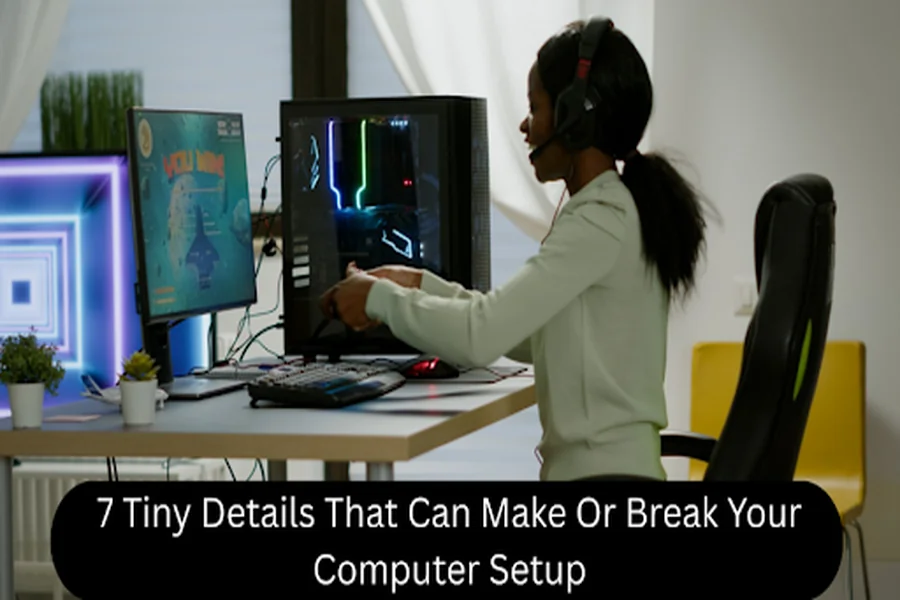
Have you ever asked yourself why some people walk out of a 10-hour workday feeling energized, while others walk out with burning neck pain and sandpaper eyes? The answer is often right there on your desk.
Things like monitor height, cable routing, or lighting angle, which tend to be overlooked, can have a big impact on comfort, focus, and long-term health in a computer setup.
This guide covers seven changes you can make today to turn your workstation from a chronic pain generator to a solid platform for deep work and wellness.
1. Cable Routing and Power Strip Placement for Clutter Control
Route peripheral cables and the monitor through sleeves, clips, or under-desk trays to remove visual clutter that can slightly increase cognitive load.
If possible, place the power strip in a tray under the desk or behind the desk leg so plugs are accessible but out of sight and not in the way of foot traffic.
If your system is a power hog, a good-quality power cord for computer to reach your hidden strip reliably will help you avoid accidental disconnections in the middle of a task.
2. Monitor Height and Tilt to Prevent Neck Strain
Place the top of your primary monitor at or just below eye level so that your eyes naturally look down 15-20 degrees, avoiding a forward head posture.
Position the screen at arm’s length (approximately 50-70 cm) for the best visual clarity and to minimize the amount of eye accommodation required.
Tilt the monitor back a bit (10-20 degrees), so it aligns with your natural line of sight and doesn’t reflect overhead lights.
If you have two monitors, place the main one straight ahead of you and the second one next to it, angled inwards like an open book, so you don’t have to keep turning your neck.
3. eyboard and Mouse Alignment for Neutral Wrists
Keep your keyboard and mouse at elbow height so your forearms are parallel with the floor, and your elbows are close to your body. Relax your shoulders.
Choose keyboard trays that tilt only slightly, and make sure you have enough desk depth to support your forearms so your wrists stay neutral (not bent up, down, or sideways).
Keep the mouse on the same surface and close to the keyboard to avoid reaching and shoulder asymmetry during long sessions.
4. Chair Height, Seat Depth, and Lumbar Support
Adjust the seat height so your feet are flat on the floor, your thighs are parallel to the floor, and your knees are at about a 90-degree angle.
Adjust the seat depth to allow 2 to 3 finger widths between the front of the seat and the back of the knees. This takes the pressure off the hamstrings and improves circulation.
Use lumbar support or a small cushion to maintain the spine’s natural curve without forcing a stiff posture, and allow micro-movements during the day.
Prolonged sitting can affect the mechanical loading of the lumbar spine. Intradiscal pressure varies with factors such as spinal motion, age, and disc degeneration. This shows the importance of changing position frequently when sitting at a desk for long periods.
5. Lighting Angle and Glare Reduction for Eye Comfort
Position the monitor at a right angle to windows to minimize direct glare and reflections, while still taking advantage of natural light for alertness. Here are two steps that you can take:
- Diffused Illumination: Reduce the contrast between the display and ambient light. Indirect lighting, such as a desk lamp that shines against the wall, can help reduce eye strain.
- Color Temperature: At night, use blue-light reduction or warmer color temperatures to help preserve your circadian rhythm, but keep it clear during the day.
6. Webcam and Speaker Placement for Better Desk Balance
Small devices affect the usability and comfort of your computer. Position your webcam at eye level, preferably just above the monitor so that you don’t have to look up or down during video calls.
Position external speakers at ear height, slightly to the left or right of where you’ll be listening, for clearer sound without needing to increase the volume. When using a laptop and an external monitor, keep the webcam and microphone in easy reach of your computer.
Keeping these accessories organized can also save desk space, making your workplace more balanced, organized, and convenient to use during the day.
7. Surface Depth and Edge Padding for Forearm Comfort
Make sure that the desk depth (the distance from the front of the desk to the wall or partition behind it) is at least 70 cm (28 in) so that your forearms can rest fully on the desk surface. Here are two steps that you can take:
- Edge Padding: If your forearms rub against the desk while typing and mousing, add a thin wrist rest or rounded edge padding to relieve pressure points.
- Clear Zones: Clear the front of the keyboard to let your forearms approach.
If you’re always looking at hard copy documents while typing, you might want to consider buying a sloped document holder to sit between your keyboard and monitor, instead of pushing your keyboard all the way to the edge of your desk.
Conclusion
With these seven elements, you’ll systematically tune your setup to evidence-based guidelines. They will help you avoid strain, optimize for deep work, and have a reliable computer setup that’s good for the long haul.